
Features
Copaky is a Japanese keyboard for iOS built on azooKey, extended with an offline clipboard history and a few options most keyboards don't give you — without anything that phones home. This page walks through what each part does and how to turn it on. Looking for the reasoning behind a decision instead of a how-to? See the FAQ.
On this page
Getting started
Three steps from installing Copaky to a keyboard that behaves the way you expect. Read the complete guide, with screenshots for each step.
1. Add the keyboard
iOS keeps third-party keyboards switched off until you add them yourself — this is the one step every keyboard needs, not something specific to Copaky.
2. Allow Full Access
Unlocks keyboard haptics, the paste key, and the clipboard history tab. Everything stays on your phone — the keyboard makes no network calls.
3. Allow pasting from other apps
iOS may ask you to allow pasting when the clipboard is read. The prompt depends on the iOS version, the app, the permission settings and the paste path.
Typing and suggestions
The parts you use on every keystroke.
Japanese input (flick and romaji)
azooKey's kana-kanji conversion engine, with Live Conversion turning what you're typing into kanji automatically as you go, on by default.
How to turn it on/off: Settings ▸ Keyboard Layout to pick flick or romaji; Settings ▸ Live Conversion to turn automatic conversion off if you'd rather confirm each segment yourself.
English QWERTY with accented characters
Long-press a letter on the Latin keyboard for accented variants used by languages that share the Latin alphabet — è é ê ë on "e", à á â ä ã on "a", and the same idea for i, o, u, n and ç. The accent people actually use most comes first (è before é), rather than alphabetical or system order.
How to use it: nothing to turn on — long-press any vowel on the Latin tab.
Optional number row
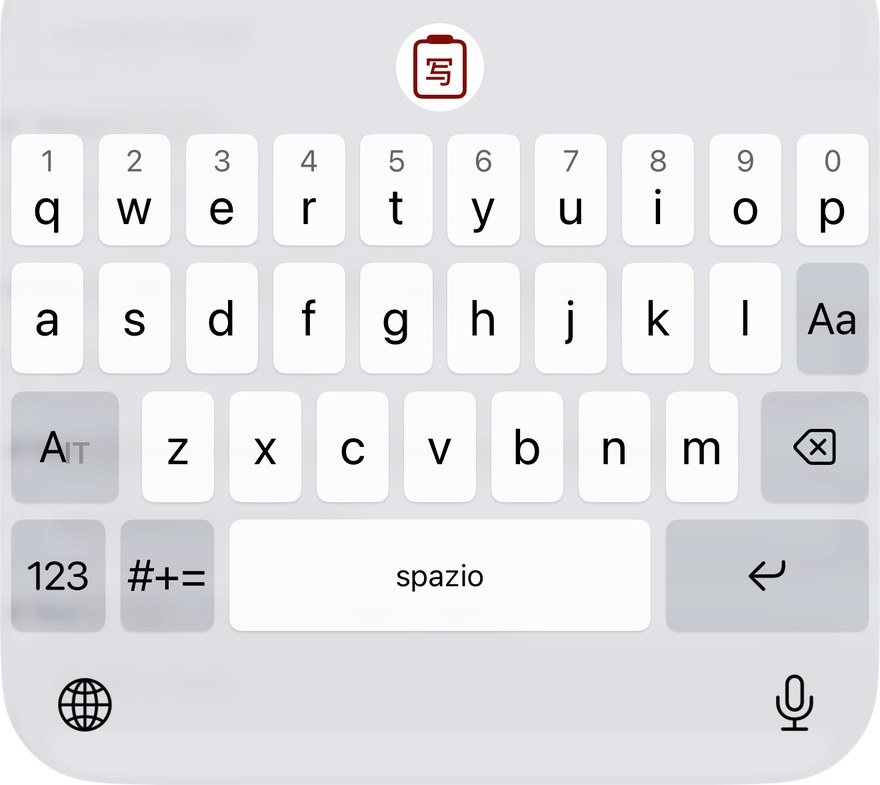
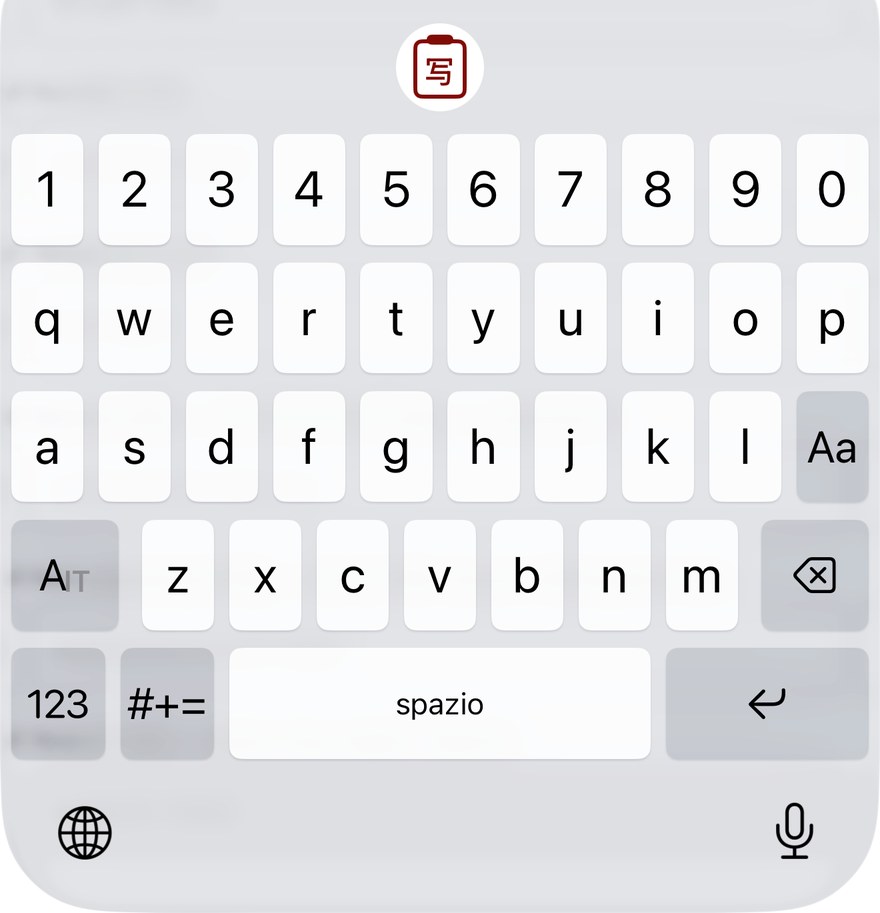
Two flavors, both off by default: small hint digits above the letter row (long-press a letter to type its digit), or a real fifth row of dedicated number keys above the QWERTY letters — the keyboard grows one row taller and every letter keeps its exact size. Until you turn either on, the keyboard looks and behaves exactly as before.
How to turn them on: Settings ▸ Usability ▸ "Show numbers on the top row" (hints) or "Add a number row to QWERTY" (real row).
A layout your thumbs already know
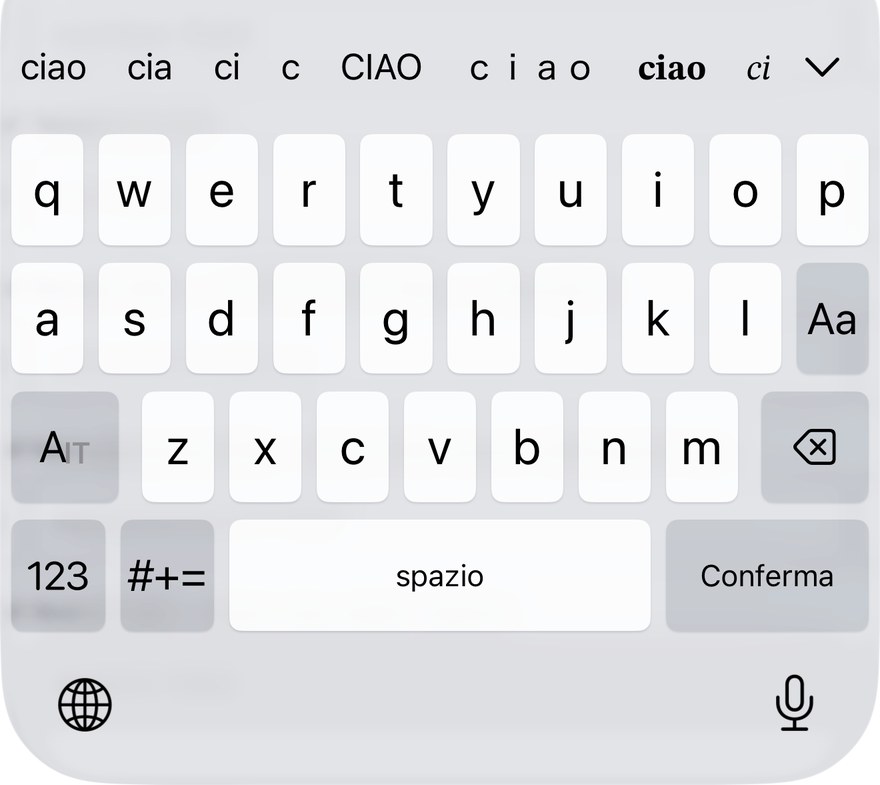
On the Latin layouts the bottom row follows the proportions of Apple's own keyboard: a wide space bar, a compact return key with the familiar ↵ symbol, and no period key squeezed against space. Double-tapping space types ". " exactly as on the system keyboard — and pressing backspace right after brings your two spaces back. Sentences start capitalized automatically in fields that allow it, and a fresh install begins on QWERTY for English and Italian. Each behavior has its own switch if you prefer otherwise.
Where the switches live: Settings ▸ Usability ▸ "Double-space for period" and "Auto-capitalization."
The suggestion bar only when it helps
On the Latin layouts the suggestion bar hides itself while it's empty, so the keyboard takes up less of the screen — it reappears the moment there are suggestions or notices to show. The Japanese layouts always keep it: conversion lives there.
How to change it: Settings ▸ Bars ▸ "Hide the suggestion bar when it is empty (Latin keyboards)."
Slide the space bar to move the cursor
An opt-in gesture for the English, Italian and Japanese-romaji QWERTY layouts: slide your finger left or right on the space bar to move the cursor step by step — the same gesture you may know from the system keyboard's trackpad mode, without the hard press. A three-level sensitivity (slow, medium, fast) decides how far you slide for each character; medium is the default. A tap still types a space, and the Japanese flick layouts are untouched. Off by default while it's on trial.
How to turn it on: Settings ▸ Usability ▸ "Slide space to move the cursor"; the sensitivity picker appears under the same switch.
Customizable keys and gestures
A handful of keys work the way you prefer: a next-candidate key, a Shift key on the Latin tab, and — on the Japanese flick layout — whether flicking the delete key left clears back to the start of the line instead of deleting one character at a time.
How to change them: Settings ▸ Custom keys and Settings ▸ Usability.
How it looks
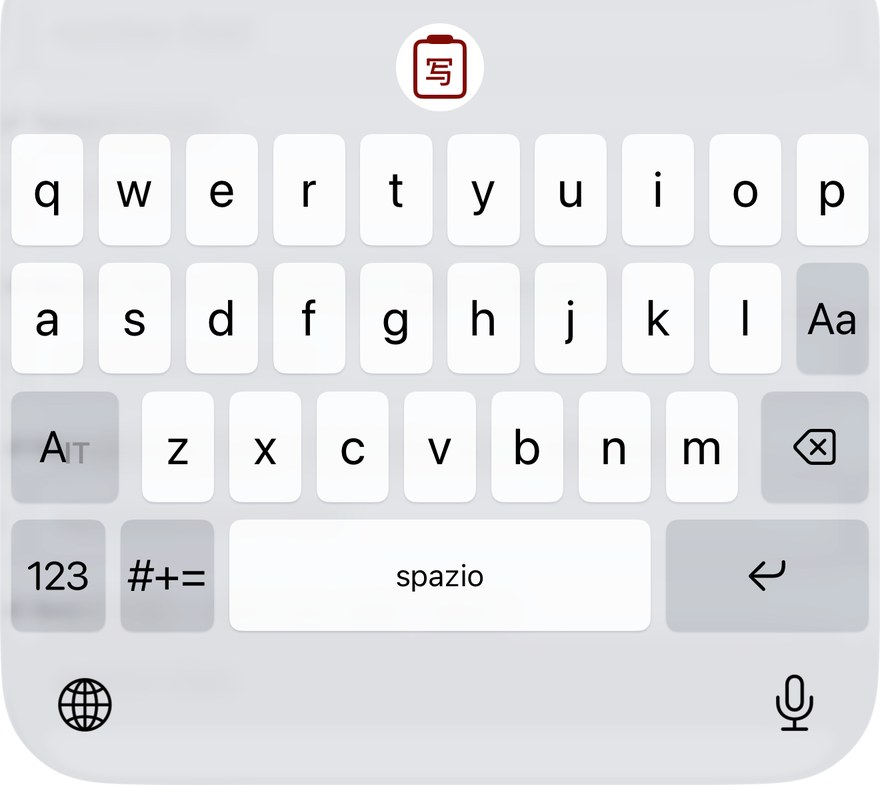
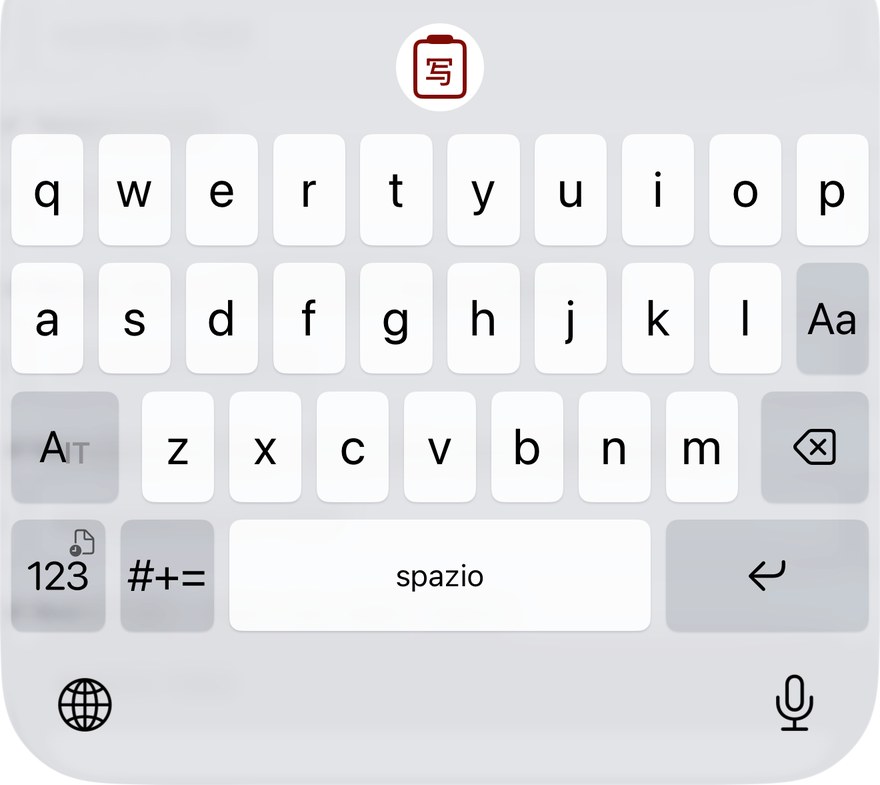
The options above change how the keyboard actually looks. These are real captures of the same keyboard with different switches turned on — each switch lives in Settings ▸ Usability or Settings ▸ Bars.
Clipboard and history
Clipboard history kept on your terms: off unless you switch it on, and captured only when you ask.
Offline clipboard history
A dedicated tab in the keyboard lets you browse and reuse things you've copied recently, without switching back to the app you copied them from. Everything stays on your device. Off by default; nothing about the keyboard changes until you turn it on.
How to turn it on: Copaky app ▸ Settings ▸ Bars ▸ "Keep clipboard histories." Requires Full Access — see Privacy and permissions below. Once it's on, a long press on the 123 key opens the history straight from the keyboard — the small badge on the key marks it. Toggles under the same setting choose WHICH keys open it — 123 and ☆123 by default, with #+= also available.
Capture only on your action
The keyboard checks only whether the clipboard changed, never what's in it, until you tap the capture control in the clipboard tab. iOS may ask you to allow pasting when the clipboard is read; whether it does depends on the iOS version, the app, permission settings and the paste path. Copaky never reads the clipboard silently in the background.
How to use it: open the clipboard tab, tap the capture control when you want to save what's currently copied.
Capture is disabled in secure fields
When iOS marks the current field as secure, the capture control is disabled. This applies to the current field only: sensitive text copied elsewhere can still be saved if you tap capture. Do not capture passwords or codes.
Pin, automatic expiry, and size limits
Pin an item to keep it around; anything unpinned is deleted automatically after 7 days. A single item is capped at 50,000 characters (256 KB) — anything larger is silently skipped rather than stored or cut off mid-way.
Languages
Japanese and English come first. Italian is the first language added specifically because people asked for it.
Japanese
azooKey's kana-kanji conversion, in flick or romaji layout, with Live Conversion as described above.
English
Full QWERTY, with completions drawn from the system's own English word list — not a separate Copaky-specific autocorrect engine layered on top. An optional, experimental typo correction (off by default) can fix common English and Italian slips when you press space.
Use Italian
Adds Italian to the language-switch key's cycle and starts suggesting words from an Italian dictionary on the Latin tab. On by default on phones whose preferred system language is Italian; off elsewhere until you turn it on yourself. When it's on, the language-switch key cycles through your active languages, and a long-press opens a menu to jump straight to the one you want. The cycle order comes from an editable “Active languages” list in Settings: Japanese stays pinned first, English is always active, and Italian can be reordered relative to English — the key also shows which language comes next. Flip the setting while the keyboard is already open and the change applies immediately, no restart needed.
How to turn it on/off: Settings ▸ Usability ▸ "Use Italian."
Auto-accent on space (Italian)
On the Italian keyboard, typing a word without its accent — like "perche" — and pressing space replaces it with the dictionary's accented form ("perché"), but only when that accented form is more common than the plain one. Words that are correct without an accent, like "si" or "da", are left alone, and fields that reject autocorrect altogether — addresses, email, passwords — are skipped too. On by default; can be turned off.
How to turn it off: Settings ▸ Usability ▸ "Auto-accent on space (Italian)."
Your own words (text replacement)
Add words the built-in dictionary doesn't already know, so they show up as suggestions later — names, jargon, anything specific to you.
How to use it: Settings ▸ Text replacement.
Supported languages, in the app
A dedicated screen in the app lists, one card per language, what's already there and what still has limits: Japanese (flick and romaji, kana-kanji conversion, Live Conversion, predictive candidates, emoji, user dictionary — the Zenzai neural conversion model isn't part of this 0.1, and is planned for a future version), English (Latin tab with predictive candidates as you type — an optional, experimental typo correction, off by default, can fix common slips on space), and Italian (Latin tab with Italian candidates including accented forms, auto-accent on space, and the same optional experimental typo correction — the vocabulary will grow in upcoming updates). Everything runs on-device; the keyboard extension makes no network calls.
Where to find it: Settings ▸ About Copaky ▸ Supported languages.
Appearance and themes
Look and layout, all configured on-device.
Three built-in themes
Light, Dark, and a red accent theme — each a handmade palette, not a copy of a system look.
How to change it: Settings ▸ Themes.
Custom tabs (custard)
Build your own keyboard layout in the app, or import one from a file already on your device. There's no online library to download from — on purpose, see Privacy and permissions below.
How to use it: Settings ▸ Custom tabs.
Tab bar order
Decide which tabs — clipboard history, emoji, your own custom tabs — appear in the keyboard's tab bar, and in what order.
How to change it: Settings ▸ Bars ▸ "Edit tab bar."
Sound, haptics and text size
Key sounds and tap haptics can each be switched off independently, and the keyboard's own font size can be adjusted separately from the system setting.
How to change it: Settings ▸ Keyboard Feedbacks and Settings ▸ Display.
Privacy and permissions
What Full Access actually does, and what it never does.
Full Access is optional
Core typing, Japanese conversion and themes work without Full Access. Clipboard history, keyboard haptics and the paste key depend on it. Full Access is off by default, and Copaky doesn't ask for it until you turn on a feature that needs it.
Where to check it: iOS Settings → General → Keyboard → Keyboards → Copaky → Allow Full Access.
Zero network calls
The keyboard extension's only entitlement is the App Group that lets it share data with the Copaky app on the same device. There's no networking capability at all — so nothing it reads can be sent anywhere, with or without Full Access.
No account, ever
There is nothing to sign into: no account, no cloud sync, no profile. Every feature works without one — and stays that way.
No telemetry — "Data Not Collected"
No analytics, no crash-reporting SDK, no advertising identifiers. Copaky's App Store privacy label states Data Not Collected.
Open source
Copaky is developed as an open-source project under the MIT License, the same license azooKey uses; the source is public at github.com/pettipol/copaky. See Credits & acknowledgements.